
Families may now report student absences, tardies and early dismissals through ParentSquare.
Please note: The report an absence feature is currently only available at for Saratoga Springs High School.
Report an Absence Using the ParentSquare App:
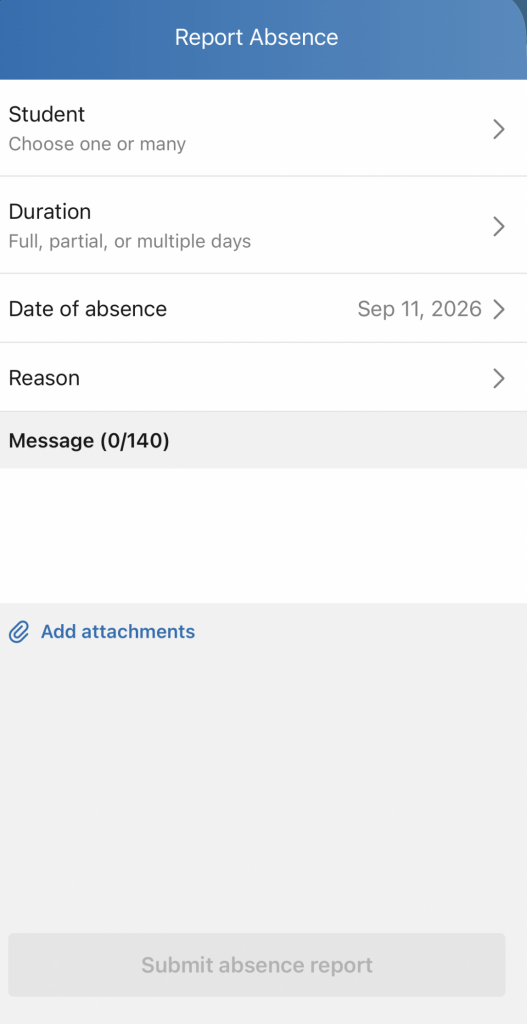 Tap Attendance in the bottom navigation.
Note: If you do not see Attendance, you may have an older version of the app. Update the ParentSquare app and check again.- Tap the + at the top of the screen.
- Tap Student and select the student who will be absent, tardy or dismissed early.
- Tap Duration and select:
- Full Day for a full-day absence
- Partial Day for a tardy or early dismissal
- Multiple Days for an absence lasting more than one day
- Tap Date and select the date(s) of the absence, tardy or early dismissal. Tap Done. If you select Partial Day, enter the times the student will be out of the building.
- Tap Reason, select the appropriate reason from the menu, and tap Done.
- Tap Add a Message and provide additional details about the absence, tardy or early dismissal. I.E. “Joan will be arriving late to school tomorrow at 10am due to an orthodontist appointment.”
- Optional: Tap Add Attachments to upload supporting documentation.
Note: Up to three files may be added. - Review the information and submit.
Report an Absence Using the ParentSquare in a Web Browser:
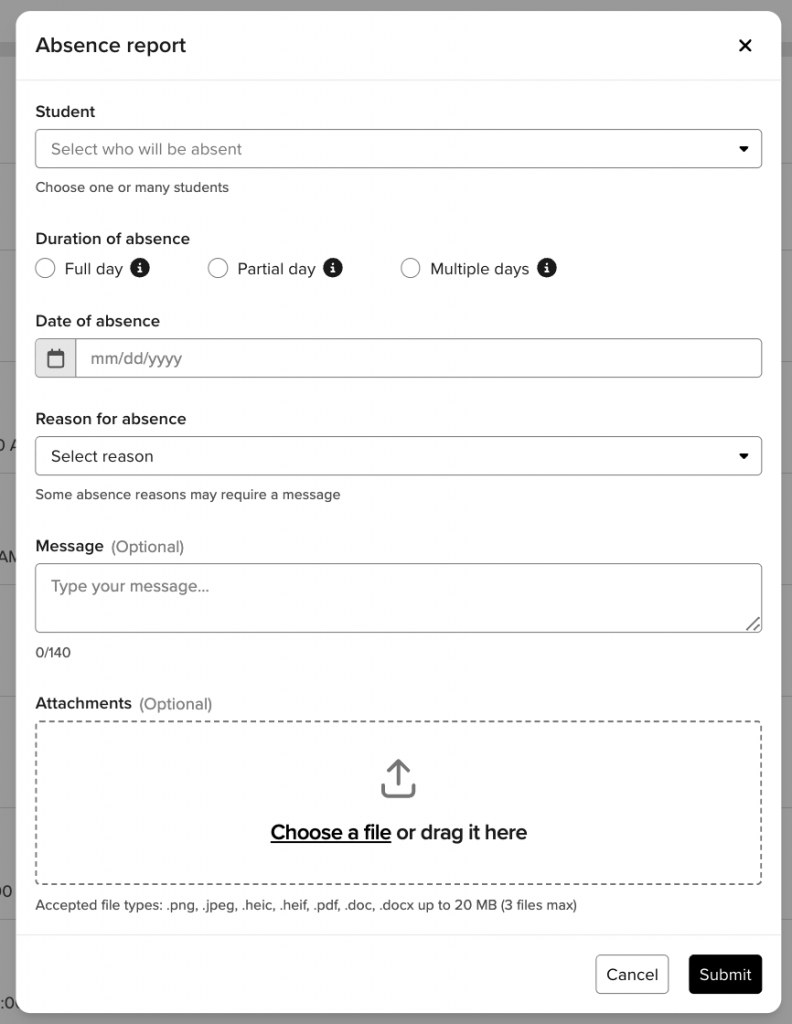
From Home, click Attendance under Communicate.
- Click Report Absence in the top right.
- Under Student, select the student(s) from the dropdown.
- Under Duration, select:
- Full Day for a full-day absence
- Partial Day for a tardy or early dismissal
- Multiple Days for an absence lasting more than one day
- For a tardy or early dismissal, select Partial Day and enter the time the student will be out of the building.
- Under Date, select the date(s) of the absence, tardy or early dismissal.
- Under Reason, select the appropriate reason from the dropdown.
- Add a Message to provide additional details. I.E. “Joan will be arriving late to school tomorrow at 10am due to an orthodontist appointment.”
- Optional: Add Attachments to upload supporting documentation.
Note: Up to three files can be added. - Click Submit.